All File Reader
- 4.1
- Rating
- 1.00M
- Installs
- Free
- Price
 Analysis by App-foxy
I spent time with All File Reader as a general productivity tool, and its appeal is easy to understand: it aims to make everyday file reading less fragmented. Instead of jumping between different apps whenever a document lands on my phone, I can approach the task from one file-reading utility. That sounds simple, but simplicity matters when I am standing in a queue, checking an attachment before a meeting, or trying to find an old document among several folders.
Developed by P & L Studio, this free app is positioned as an all-purpose file reader for Android users. It has reached over a million installs and holds a 4.1 average from more than four hundred ratings, which suggests that the basic idea is useful to a broad audience. Its current version is 1.1.0, and it is available for devices running Android 6.0 or later. The age rating is Everyone, so the presentation is intended to remain suitable for a general audience.
How All File Reader fits into everyday phone use
The most useful way to think about this app is not as a replacement for every specialist document tool, but as a practical first stop. When I receive a file and only need to read it, the value is in reducing the number of decisions between opening the phone and seeing the content. That makes it particularly appealing to people who do not want a separate reader for every format they encounter.
You May Also Like

 Blood Strike: 2.5 Anniversary
Blood Strike’s Loadouts Turn Every Drop Into a Tactical Gamble
A close look at Blood Strike’s custom loadouts: how fast access to signature weapons reshapes its battle royale rhythm, rewards preparation, and narrows the gap between fights.

 Pandora - Music & Podcasts
Pandora’s Music Is Easy to Start, but Harder to Recover
Pandora’s strength is its low-effort path from a seed to a station. Its weak spot is how much confidence it asks you to place in connection, setup, and quiet recovery.

 8 Ball Pool
 Is Built on Rivalries, Rematches, and Routine
A close look at the rivalries, rematches, shared routines, and unanswered safety questions that turn a quick pool match into a persistent mobile community.

 Samsung Music
’s Quiet Strength Is Playing What You Already Own
Its reach comes less from spectacle than from dependable access to a personal library. That simplicity is both the app’s strongest retention engine and its ceiling.

 AccuWeather: Weather Radar
AccuWeather Review: A Quick, Clear Forecast for Everyday Decisions
For everyday plans, the best forecast is the one you can understand quickly. AccuWeather makes rain timing, radar, and local conditions easy to act on, with a few trade-offs.

 Hill Climb Racing
Why Hill Climb Racing Still Turns Crashes Into One More Run
A tiny car, a bumpy hill and one more upgrade: Hill Climb Racing keeps resurfacing because its simple chaos makes every near-miss feel personal.
More From Our News Desk



My preferred workflow with an app like this starts with the file itself rather than with a particular document category. I open the reader, locate the item, check that it is the correct file, and then decide whether I need to share, move, or continue working on it elsewhere. This is a small distinction, but it changes the app’s role: it becomes a viewing hub rather than a full office suite.
That difference is important for expectations. A reader is convenient when the job is inspection. It is less convincing when the job involves substantial editing, detailed formatting, spreadsheet calculations, or collaborative writing. If I need to alter a document carefully, I would still prefer the dedicated editor associated with that format. All File Reader makes more sense for quick access, checking, and basic file management than for replacing a complete productivity system.
Connectivity matters before the file opens
The connection question depends heavily on where the file comes from. If a document is already available on the phone, the immediate reading task feels naturally local: I can focus on the file rather than on a browser tab or a cloud dashboard. If the document is stored behind an online service, attached to an email, or waiting in a messaging conversation, the first step may depend on connectivity before the reader can even become useful.
That creates two different experiences. A downloaded file is ready for the next step, while an online file may require the network to fetch it first. I would not treat the app as a guaranteed solution for every disconnected situation, because the availability of a document can depend on how it reached the device in the first place. The sensible habit is to open important files ahead of travel or meetings instead of assuming that every source will be reachable at the moment of need.
This is one of the less obvious strengths of a central file reader: it encourages me to deal with the file after it arrives, rather than leaving it buried in a communication app. For example, if a colleague sends a document while I am connected, I can locate it through the reader later instead of searching through an old conversation. That workflow is especially helpful when the original message is difficult to find.
There is also a trade-off. A single reader can simplify access, but it does not remove the network requirements of external services. The app can be the place where I read a file, yet the file may still need to be downloaded from somewhere else. Understanding that boundary prevents a common frustration: blaming the reader when the real problem is that the source document has not arrived on the device.
Useful on a small screen, with sensible limits
Phones are excellent for checking information and poor for some forms of detailed document work. All File Reader fits the first category well. I can imagine using it to confirm a booking document, inspect a work attachment, review a form before sending it, or look through a reference file while away from a desk. These are moments when opening a computer would feel excessive.
The mobile setting also changes how I judge navigation. On a phone, a useful reader should help me identify the right file quickly, open it without unnecessary detours, and return to the broader file list when I am done. The less time I spend navigating between unrelated apps, the more valuable the tool becomes. This is why the app’s broad reader concept is more practical than it first appears.
Still, a small display exposes the limits of the format. Long documents are tiring to scan on a phone, tables may require zooming, and detailed comparisons are easier on a larger screen. I would use the app for a quick review of a lengthy document, but I would not choose a phone-only workflow for proofreading a complex report line by line.
A useful mobile habit is to separate “read now” from “work later.” I can use the reader to confirm that a file is correct, note the section that needs attention, and then move to a desktop or specialist app for serious changes. That prevents the common mistake of forcing a general reader to perform tasks it was not designed to handle comfortably.
What happens when access fails
File handling becomes most revealing when something goes wrong. A file may not appear where I expect, the source application may not finish sending it, or the document may be difficult to identify among similarly named items. In those moments, a calm recovery routine is more useful than simply trying the same action repeatedly.
I would first check whether the file has actually reached the device, then look for it by its name or location rather than assuming it belongs to the most recent conversation. If it still does not appear, I would return to the original source and confirm the transfer before reopening the reader. This separates a missing-file problem from a reader problem, which saves time.
Another practical safeguard is to keep meaningful filenames. A reader can help me access files, but it cannot make a vague name informative. Renaming documents after downloading them is worthwhile when several versions are involved. For instance, using a clear project name and purpose is much safer than relying on a sequence of generic attachment names.
Recovery also matters when connectivity changes unexpectedly. If I am on a weak mobile signal, repeatedly attempting to fetch the same attachment can waste time and data. I prefer to wait until the file is fully available, then open it through the reader. For important travel documents, I would verify access before leaving a reliable connection rather than discovering the problem at the airport or station.
The friction here is that a general file reader cannot control every part of the chain. It may make the final opening step easier, but it cannot repair a damaged transfer, restore a missing attachment, or guarantee that an external service is reachable. That is not a reason to reject it; it is a reason to use it as one part of a sensible file workflow.
Keeping mobile data use under control
Connectivity is also a resource issue. Reading a file is not the same as downloading it, and I try to avoid treating those steps as one automatic action when I am using mobile data. A large document, repeated download, or attachment opened several times can be inconvenient if I am working with a limited plan.
My practical approach is straightforward: download important files while connected to a trusted Wi-Fi network, avoid reopening the same online attachment unnecessarily, and remove duplicate copies when they are no longer needed. The reader is most efficient when I give it a prepared file instead of asking it to repeatedly retrieve the same content.
This workflow has a second benefit beyond data savings: it reduces uncertainty. If I have already checked that a document opens correctly, I am less likely to depend on a last-minute connection. That is particularly useful for tickets, instructions, forms, or other files that matter at a specific time.
I would also be selective about what I keep. A phone can quickly become a storage area for repeated downloads, especially when a file arrives through several conversations. Keeping one clearly named copy makes later searching easier and avoids confusion about which version I actually reviewed. All File Reader is more helpful when the surrounding file collection is reasonably organized.
There is no advantage in expecting a general reader to replace a dedicated cloud-storage strategy. If my work depends on synchronized folders, version history, or shared editing, I would use the relevant cloud or office platform and treat this app as a convenient reading option. The reader’s strength is immediate access, not managing an entire connected document ecosystem.
Who will appreciate it most
I think All File Reader is best suited to people who regularly receive different files on an Android phone and want one familiar place to inspect them. Students checking course material, travelers reviewing documents, families opening downloaded forms, and workers confirming attachments are all plausible users. The free price also makes it easy to try without turning the decision into a financial commitment.
It is especially useful for the “I only need to look at this” moment. Many mobile file tasks are temporary: confirm a page, read an instruction, check a detail, or decide whether a document needs further work. For those situations, installing a full office suite can feel excessive, while relying on whichever app happens to claim a file can feel inconsistent.
I would be more cautious if my main requirement is advanced editing. Someone who needs tracked changes, professional layout control, formulas, presentations, or team collaboration will probably be better served by a specialist productivity suite. Likewise, users who already have a well-organized cloud workflow may gain little from adding another access layer.
Privacy-conscious users should also think about their own file habits before installing any reader. I would avoid opening sensitive documents casually on a shared device, and I would keep the phone’s general security in good condition. The Everyone rating describes the intended audience, but it does not remove the need to handle personal and work documents responsibly.
How it compares with familiar alternatives
The usual alternative is to let Android open each file with whichever compatible application is already installed. That approach can be perfectly adequate when I deal with only one document type. Its weakness appears when files arrive from different sources and I want a consistent starting point. All File Reader offers a more unified way to approach those mixed moments.
A second alternative is a full office application. That is the better choice when I need to edit, create, format, or collaborate. However, office suites can feel heavier for simple reading, and I may not want to navigate a large workspace just to inspect one attachment. This app’s narrower purpose can therefore be an advantage for quick checks.
Cloud-storage applications are another comparison point. They are stronger for synchronization, sharing, and organized access across devices, particularly when the same files must remain current everywhere. All File Reader is more appealing when my immediate concern is opening and managing files already available on the phone, not maintaining a complex shared repository.
The right choice depends on the handoff. I would use this reader to inspect a file, a specialist editor to change it, and a cloud platform to coordinate it with other people. Treating those as separate jobs produces a cleaner workflow than demanding that one app do everything.
Small habits that make the experience smoother
One useful habit is to review a file soon after downloading it. This catches transfer problems while the original message or source is still easy to reach. It also lets me rename or organize the document before it disappears into a crowded download folder.
A second is to use the reader as a checkpoint before sharing. I prefer to open the exact file I plan to send, confirm its contents, and only then pass it along. This is a simple way to avoid forwarding an outdated copy, particularly when several similar documents are stored together.
A third is to plan around connectivity rather than testing it at the worst possible moment. If a document will matter during a journey or appointment, I prepare it while connected and verify that it opens. That habit is more dependable than assuming a network will be available when I need the file.
Finally, I keep expectations proportional to the app’s role. The reader can simplify access and reduce app switching, but it does not turn a phone into a full desktop workstation. When I respect that boundary, the experience feels focused rather than limited.
My final view on the reading experience
All File Reader is a sensible productivity app for Android users who want a straightforward way to approach files from one place. P & L Studio keeps the concept focused, and the free availability makes it approachable for casual users as well as people who regularly deal with attachments and downloads. Its broad adoption and 4.1 average indicate that the idea has found a useful audience.
The connectivity angle is where I would set the clearest expectations. The app can make the reading stage more convenient, but it cannot guarantee access to files that still depend on email, messaging, cloud services, or an unreliable network. My best results come from preparing important documents in advance, confirming that they are available, and using the reader as the dependable final step.
My recommendation is simple: choose it if your priority is quick, centralized file reading on an Android phone. I would skip it if I mainly need advanced editing, collaboration, or a deeply synchronized document system. For everyone in between, it offers a useful middle ground—less scattered than opening files through random apps, but lighter and more focused than carrying a complete office suite for occasional reading.
With Android 6.0 or later supported and the current release at version 1.1.0, it is accessible to a wide range of devices. I would install it for the everyday moments when a file needs checking now, while keeping a dedicated editor available for work that demands more control. That combination gives the app a clear place in my mobile workflow without asking it to be something it is not.
FAQs for All File Reader
01What file formats can All File Reader open?
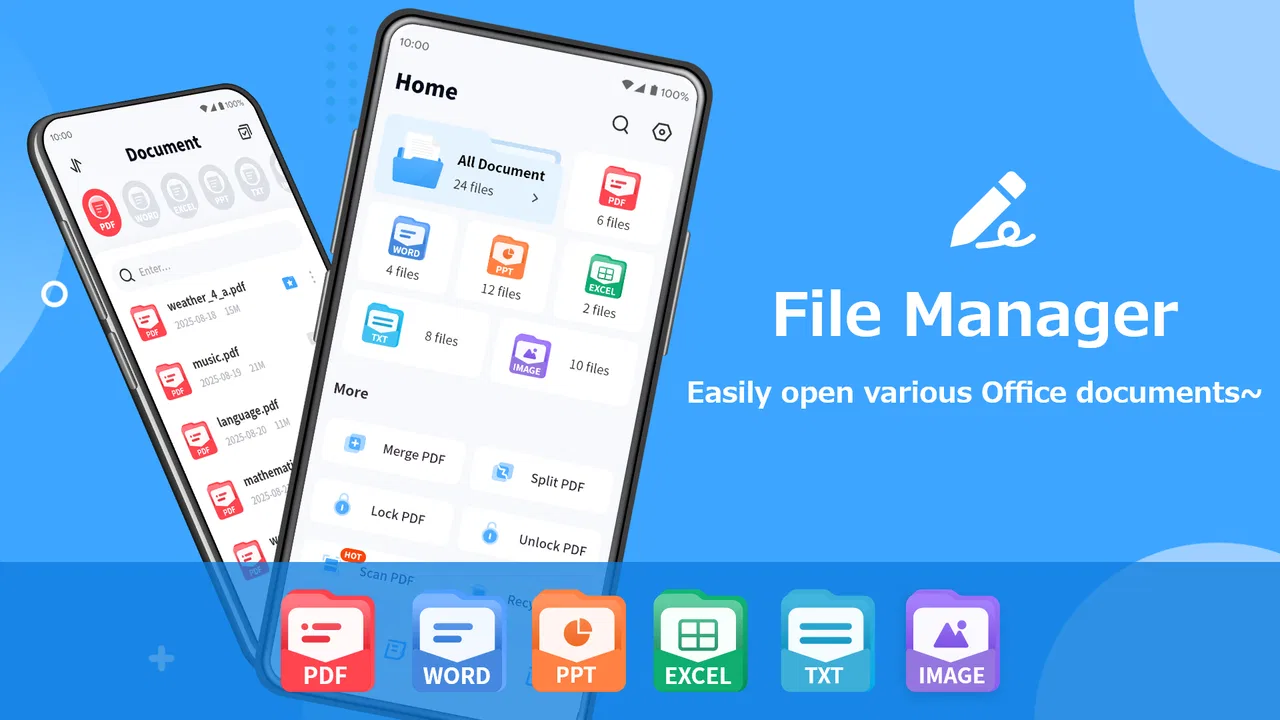
All File Reader is designed to support a wide array of file formats, including PDFs, Word documents, Excel spreadsheets, PowerPoint presentations, and various image and text files. This makes it a versatile tool for users who need to access different types of files without downloading multiple applications.
02Is All File Reader safe to use on my device?
Yes, All File Reader is safe to use on both Android and iOS devices. It has been vetted for malware and security vulnerabilities. However, it's always a good practice to download apps from official app stores and keep your device’s security settings updated to ensure maximum protection.
03Does All File Reader require an internet connection to function?
All File Reader primarily works offline, allowing you to access your files without an internet connection. However, certain features, like accessing cloud storage or downloading updates, will require internet access. This makes it convenient for users who need to work in areas with limited connectivity.
04Can I edit documents using All File Reader?
All File Reader is mainly a viewing tool, so it does not support document editing. If you need to make changes to your files, you might want to use a dedicated editing app. For basic annotations or notes, you may find some limited options available within the app.
05Is there a cost associated with using All File Reader?
All File Reader offers a free version with basic features. For advanced functionalities, such as additional cloud storage options and enhanced file support, there may be a subscription fee or one-time purchase. Users can choose according to their needs and budget preferences.
Pros
- Supports multiple file formats.
- Easy-to-use interface.
- Quick file loading times.
- Offline access available.
- Customizable settings.
Cons
- Limited cloud integration.
- Occasional ads can be intrusive.
- No advanced editing features.
- File conversion not supported.
- Some formats need external plugins.

All File Reader
Gallery